On Mac
Pomodorome lives in the menu bar. It has no Dock icon and no menus of its own.
The menu bar
The menu bar shows the time left, like 17:40; when no session runs, the length of a focus session. A session of an hour or more shows its hours too, 01:30:00. When the time is up it stays at 00:00 until you start the next session.
To see an icon instead of the time, turn off Timer in status bar in Settings → General.
The panel
Click the time in the menu bar to open the panel. Click anywhere else or press Esc to close it.
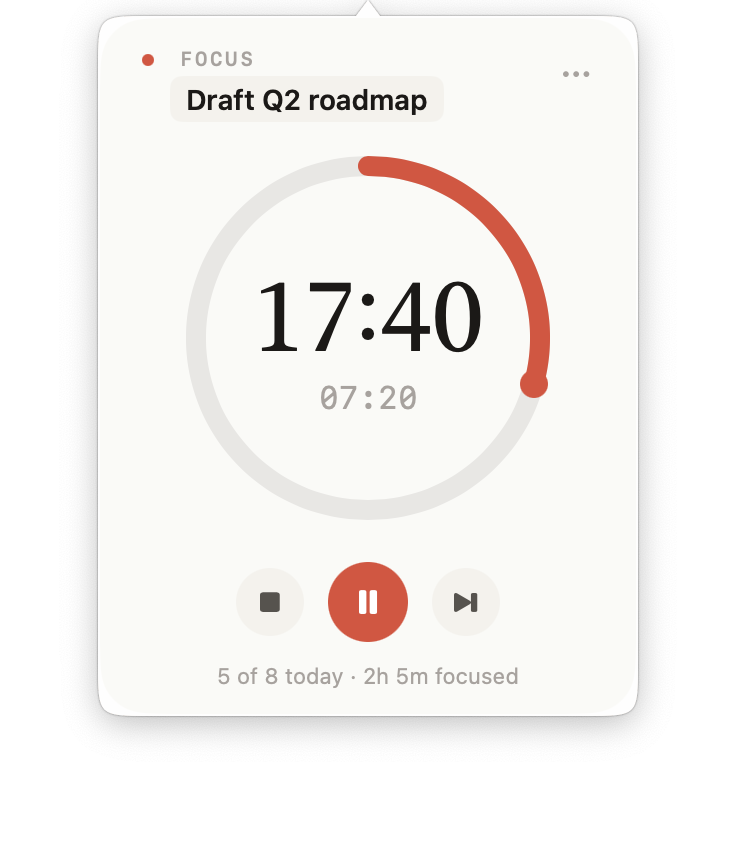
The panel during a focus session
- At the top: what the timer is doing (READY, FOCUS, BREAK), the task, and the ••• button.
- The ring with the time left, and under it the time already spent.
- The buttons. Hover a button to see its name. See The Timer.
- At the bottom: today's completed focus sessions out of your daily goal, and today's focus time, "5 of 8 today · 2h 5m focused".
When a focus session ends, the panel shows the Focus complete card. See The Timer.
The ••• menu
- Statistics… opens Statistics.
- Settings opens Settings.
- Show Floating Window or Hide Floating Window.
- About: the version, Contact author, Rate the app and Show data folder in Finder.
- Rate the app opens the Mac App Store to rate Pomodorome.
- Quit closes Pomodorome. A session in progress keeps its time and goes on when you open the app again.
The floating window
The floating window keeps the timer on screen, above your other windows. Show it with ••• → Show Floating Window, or turn on Modal window in Settings → General.
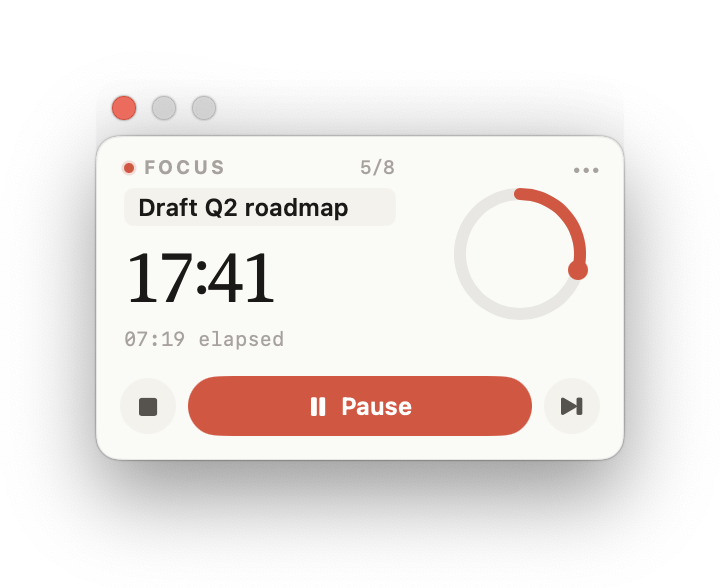
The compact floating window
It comes in two layouts:
- Compact, the one it starts with: the time, a small ring, the task and the buttons.
- Full: the same as the panel.
Switch between them with Compact Layout in the floating window's own ••• menu, or Compact layout in Settings → General.
- Drag the window by its background to move it. Each layout remembers where you left it.
- Turn on Visible on all spaces in Settings to see it on every desktop.
- When a focus session ends, the compact window shows Start break and Skip (skip the break and start the next focus session).
- To hide it, use Hide Floating Window in its ••• menu.
The welcome window
At the first launch a window shows where Pomodorome is: in the menu bar, at the top of the screen. Turn on Also show as a floating window there if you'd like the timer on screen, then click Get started.
Launch at login
Turn on Launch on start in Settings → General to open Pomodorome when you log in.
Language
Pomodorome follows the language of your Mac. To pick another one, use Application Language in Settings → General: English, Deutsch, 日本語 or Simplified Chinese. The app restarts in the new language right away.
Notifications and keyboard shortcuts
- When a session ends, the Mac shows a notice of its own and plays a sound. See Notifications and Sounds.
- Start, pause, skip and show the windows from any app with Keyboard Shortcuts.